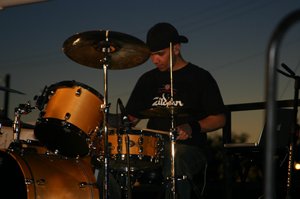
Drumming with Ableton Live opens the door to a whole new creative world—where live performance, studio production, and real-time beat-making collide. Whether you’re a beginner drummer or a seasoned performer, integrating this powerful DAW into your setup can transform your playing forever.
- Create dynamic live performances with backing tracks and triggers.
- Experiment with MIDI drums, loops, and effects in real time.
- Streamline your recording sessions with powerful session views.
In this guide, you’ll learn how to set up, play, and produce killer drum parts using Ableton Live. We’ll cover everything from gear setup to performance workflows—so let’s dive in and bring your grooves to life.
- Getting Started with Ableton Live
- Essential Drum Gear for Integration
- Mapping MIDI for Drummers
- Creating Drum Racks and Clips
- Performing Live with Ableton
- Helpful Tips for a Smooth Workflow
Suggested Products to help you #win at drumming:
-
M-Audio SP 2 Sustain Pedal
– Great for triggering effects or controlling Ableton’s functions with your foot while playing. -
Roland SPD-SX Sampling Pad
– Ideal for live drummers to launch samples, loops, or backing tracks. -
Focusrite Scarlett 4i4 3rd Gen USB Audio Interface
– A reliable interface for low-latency audio tracking and triggering. -
Korg nanoKONTROL2 Slim-Line USB Control Surface
– Simplifies control of volume levels, track arming, and scenes within Ableton. -
Donner MIDI Pad Beat Maker Mini
– A compact, portable pad controller perfect for finger drumming or cue launching.
Getting Started with Ableton Live
If you’re brand new to Ableton Live, start with the Session View. This view is ideal for improvisation and triggering loops or drum patterns in real time. As a drummer, this offers a nonlinear creative environment that fits naturally with rhythm-based thinking.
Install Ableton Live on a reliable computer and connect your audio interface. I recommend using the Focusrite Scarlett 4i4 3rd Gen for stable, high-quality audio with minimal latency during live triggering or recording. If you’re unsure what interface to choose, check out the Top 7 Drum Recording Interface Picks for Studio-Quality Sound.
Next, learn the layout: Session View for performance, Arrangement View for structuring your song. Both are critical, but Session View is where the magic really happens for drummers.
Setting Audio Preferences
Navigate to Preferences > Audio and select your audio interface. Set your buffer size as low as possible (128 samples or lower) to reduce latency when playing triggered sounds live.
Essential Drum Gear for Integration
You don’t need a full electronic kit to use Ableton effectively. In fact, many hybrid drummers mix acoustic setups with MIDI triggers or pads. Here’s an overview of the gear that can streamline your Live integration:
| Gear Type | Purpose |
|---|---|
| Sample Pads | Trigger loops, sound effects, one-shots |
| MIDI Controllers | Launch clips, control volume/mix, map effects |
| Audio Interface | Connect mic inputs, monitor outputs, MIDI IO |
| Foot Switches | Hands-free control of playback or effects |
The Roland SPD-SX is a common choice for pro drummers wanting robust sampling options. Pair it with a controller like the Korg nanoKONTROL2 for additional hands-on mixing power. For a complete hybrid setup, you might also benefit from reviewing the Ultimate Drum Mic Setup Guide: Best Mics for Pro Sound.
Mapping MIDI for Drummers
One of Ableton’s greatest features is MIDI mapping. You can assign any key, pad, or pedal to control nearly any function in Live. This is where creativity really kicks in—suddenly your kick pedal can start your backing track, or a cymbal hit can trigger a vocal sample.
Mapping Foot Switches and Pads
Use the MIDI Map Mode by clicking the “MIDI” button in the top right corner. Select the function you want to control—such as scene launch—and tap your foot switch like the M-Audio SP 2. That’s it—it’s now assigned!
Drum pads like the Donner MIDI Pad Beat Maker Mini are excellent for finger drumming or launching clips on the fly, especially if you’re performing solo or programming during rehearsals.
Creating Drum Racks and Clips
Drum Racks allow you to load sounds across pads and sequence them however you wish.
Layer Sounds and Effects
Group your kicks, snares, and hi-hats—in separate chains. Use Ableton’s built-in drum sounds, or drag in your own samples. Add an EQ or reverb directly to each layer for custom tone shaping.
Create clips to trigger whole grooves or transitions. You can even automate fills or breakdowns to launch with one pad tap.
Velocity Zones and Choke Groups
Play expressively by setting velocity layers—harder hits trigger different samples. For live play, set choke groups to prevent overlapping high-hat sounds, for example, keeping your grooves tight and clean.
Performing Live with Ableton
When it comes to live drumming performance, Ableton gives you almost unlimited flexibility—but preparation is key.
- Pre-load your sets: Organize each song into scenes with labeled rows for easy triggering.
- Use color coding: Visually group types of tracks (drums, FX, backing) with pad-friendly labeled colors.
- Test transitions: Practice going between songs, triggering fills, or automating tempo changes smoothly.
Control surfaces like the Korg nanoKONTROL2 let you adjust mixer levels or mute channels mid-performance without reaching for your mouse. To build more control into your set, take a look at the Drum Practice Routine Basics for Faster Skill Progression.
Helpful Tips for a Smooth Workflow
- Save your setups as templates so you don’t have to start fresh every session.
- Label your MIDI inputs and pads for quick troubleshooting during soundcheck.
- Practice scene changes, mute/unmute functions, and effects toggling like it’s part of your drumming.
Lastly, remember that your DAW is your bandmate—it listens as much as you play. Refine your playing to lock in perfectly with quantized patterns without losing feel. That balance is where the groove lives.
Conclusion
Drumming with Ableton Live isn’t just about technology—it’s about creative freedom. Whether you’re launching loops using the Roland SPD-SX or sculpting beats with a control surface like the Korg nanoKONTROL2, every element adds musical impact. Start small, focus on one or two mapped pads or triggers, then expand your rig as you go.
Now’s the time to explore a new kind of performance. Dig into your gear, test your ideas, and turn your beats into unforgettable live experiences. Ready to level up? Try a new mapping setup today, and don’t forget to check out the products above to power your Ableton drumming journey.
FAQs
What’s the best way to record drums in Ableton Live?
Use a solid audio interface and multi-mic layout for acoustic kits, or MIDI pads for digital setups. Focusrite Scarlett 4i4 is reliable for both. For cleaner tracking, always check your latency and gain staging.
Can I use a MIDI drum kit with Ableton Live?
Absolutely. Ableton reads MIDI from most drum modules. Once connected, map your pads to drum racks or use virtual instruments like Drum Rack or Simpler. It’s plug-and-play for most modern kits.
What’s the benefit of using a drum pad vs. an acoustic trigger?
Drum pads like the Roland SPD-SX offer more control and less setup fuss. They’re ideal for triggering complex samples or entire loops instantly. Acoustic triggers are great for integrating real drum hits into your DAW-based workflow.
Is it possible to use multiple controllers with Ableton?
Yes. You can use a MIDI pad, foot switch, and control surface simultaneously. Just make sure each is mapped correctly and not conflicting. Using different MIDI channels can help isolate inputs.
How do drummers stay in sync with backing tracks?
Use in-ear monitoring and a reliable click track inside your Ableton Session. Many drummers also route a separate click output using their interface to avoid bleed. Practicing with a click is essential for tight live sets. Also check out tips in the Master Drum Timing Skills: Boost Speed, Precision & Control article.
Which Ableton view is best for live triggering—Session or Arrangement?
Session View is best for live drummers. It enables easy loop triggering, one-shot playing, and quick scene changes. Arrangement View is excellent for building full song structures but is less real-time friendly.
Can I control volume levels live while playing?
Yes, with devices like the Korg nanoKONTROL2, you can slide levels, mute tracks, and adjust effects while playing. It helps automate your dynamics and energy across the performance.